On this page (10 sections)
- Introduction
- What is a PDF to Word Converter?
- Core Features of a Professional PDF to Word Tool
- Benefits of Converting PDFs to Word Documents
- Step-by-Step Tutorial: How to Convert PDF to Word Online
- Real-Life Scenarios: When Do You Need a PDF to Word Converter?
- Pro Tips for Flawless Document Conversions
- Common Mistakes to Avoid
- Frequently Asked Questions (FAQ)
- Conclusion
Summary: A comprehensive guide on how to efficiently use an online PDF to Word converter to transform locked documents into fully editable Microsoft Word files while maintaining clean formatting, tables, and typography.
Introduction
In today’s digital-first workplace, sharing documents securely often means locking them down into the portable document format, universally known as the PDF. While PDFs are exceptional for preserving visual integrity across different operating systems and mobile devices, they are notoriously frustrating when you need to edit text, update data tables, or repurpose content.
Have you ever tried copying text directly from a rigid PDF file, only to be met with broken line breaks, misaligned columns, or scrambled typography? It is a universal productivity bottleneck.
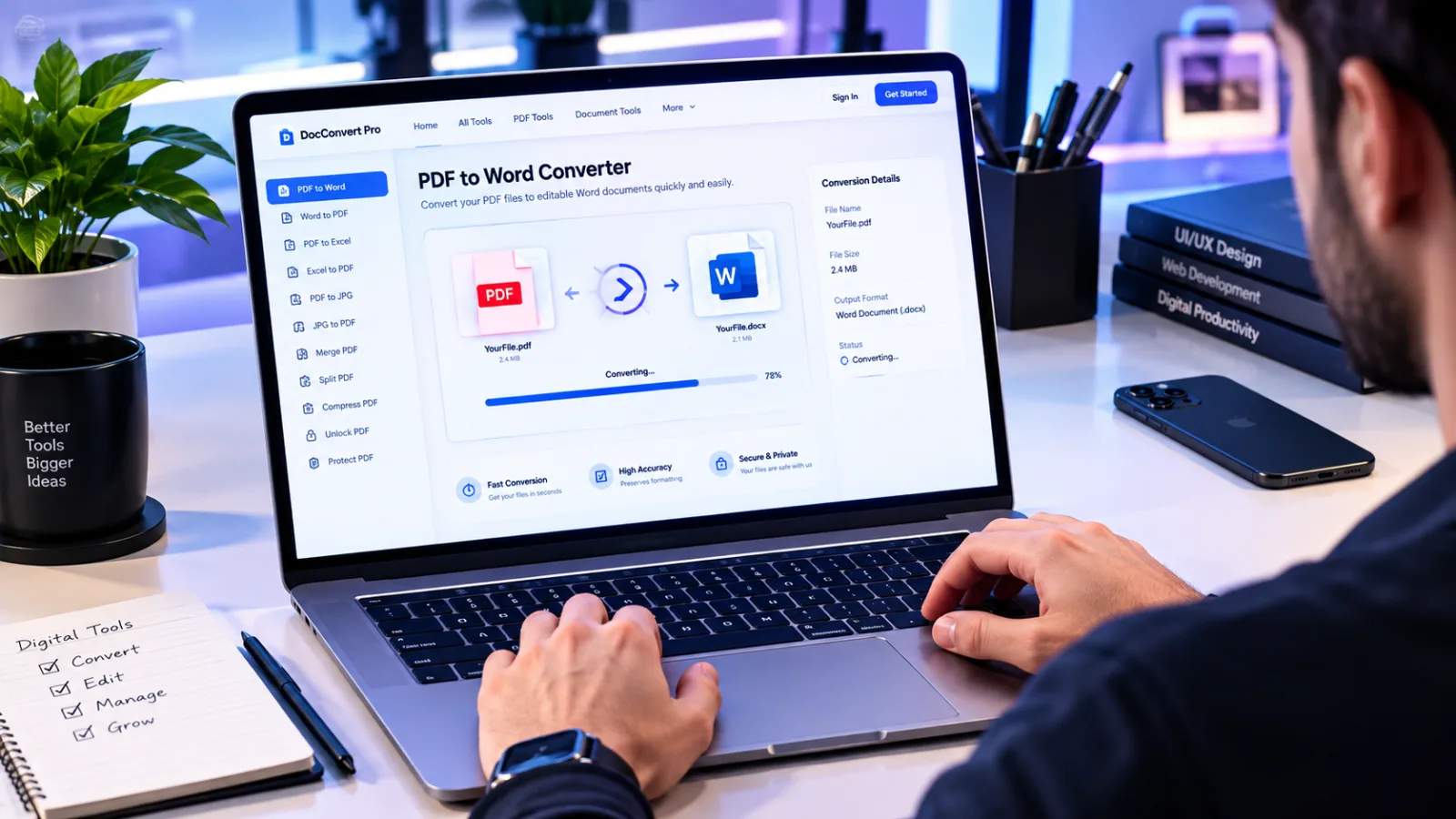
Fortunately, utilizing a specialized online PDF to Word Converter completely eliminates this friction. Whether you are an accountant updating financial statements, a researcher extracting citations, or a student revising a thesis, converting rigid PDFs into fully editable Microsoft Word (.docx) files saves hours of manual retyping. In this exhaustive guide, we will explore how PDF conversion works, how to maintain formatting integrity, and why using a fast, browser-based utility on WebToolsHelper PDF to Word Tool is your best choice for secure and seamless document management.
What is a PDF to Word Converter?
A PDF to Word Converter is an advanced software utility designed to parse the underlying structure of a PDF document—including vector graphics, text layers, embedded fonts, and table grids—and translate them into a native Microsoft Word format (.doc or .docx).
Unlike basic copy-pasting, a professional-grade converter maps out structural elements logically. It recognizes headers, paragraphs, bullet points, and image coordinates, rebuilding the file so that when you open it in Word, Google Docs, or LibreOffice, it looks and acts like an original text document rather than a collection of random text boxes.
Core Features of a Professional PDF to Word Tool
- High-Precision Layout Reconstruction: Intelligent algorithms preserve original margins, font families, column placements, and indentations.
- Table & Graphic Retention: Complex data tables and embedded charts are cleanly mapped into editable Word table grids.
- Lightning-Fast Processing: Cloud-optimized servers render and convert multi-page documents in mere seconds without draining local computer memory.
- Client-Side Data Security: Strict privacy protocols ensure that uploaded files are automatically scrubbed from temporary servers shortly after processing.
- No Software Installation Required: Fully responsive web design allows you to convert documents directly from your browser on Windows, macOS, Linux, iOS, or Android devices.
Benefits of Converting PDFs to Word Documents
Switching your documents from static read-only formats to flexible text editors unlocks immediate operational benefits:
- Unmatched Editing Freedom: Instantly rewrite sentences, correct typos, modify styling elements, and update pricing charts without starting from scratch.
- Enhanced Collaboration: Share editable
.docxfiles with team members who can track changes, leave inline comments, and co-author content collaboratively. - Seamless Content Repurposing: Extract long-form text blocks, quotes, and research data to reuse in blog posts, newsletters, or slide presentations.
- Time and Cost Efficiency: Eliminate the grueling task of manual transcription. What used to take hours of retyping can now be accomplished in a single click.
Step-by-Step Tutorial: How to Convert PDF to Word Online
Follow this simple workflow to transform any PDF document into an editable Word file using the WebToolsHelper platform:
- Step 1: Access the Tool Page — Open your web browser and navigate to the official WebToolsHelper PDF to Word Converter.
- Step 2: Upload Your Target File — Click the "Upload File" button or drag and drop your target PDF directly into the secure upload dropzone box.
- Step 3: Trigger the Conversion Engine — Click the "Convert to Word" button to let the system parse and rebuild the document structure.
- Step 4: Download Your File — Once processing finishes, click the generated download link to save your new
.docxfile directly to your local downloads folder. - Step 5: Open and Edit — Launch the file in Microsoft Word or Google Docs to perform any final text refinements.
Real-Life Scenarios: When Do You Need a PDF to Word Converter?
1. The Corporate Contract Revision
An enterprise legal team receives a signed service agreement in PDF format from a vendor. Minor adjustments to payment timelines are required. Instead of printing, hand-editing, scanning, and re-uploading, the team converts the PDF into a Word document, updates the specific clauses cleanly, and re-exports it.
2. Academic Research and Data Extraction
A graduate student compiling literature reviews discovers crucial statistical charts embedded inside dense research PDFs. By converting the files into Word, the student effortlessly extracts tables and references to cite in their master's dissertation.
Pro Tips for Flawless Document Conversions
- Check for Scanned Documents (OCR Requirement): If your PDF is merely a flat image scan of a paper document, standard text parsers will fail. Ensure your tool supports Optical Character Recognition (OCR) to accurately read scanned letters.
- Keep Formatting Simple: Overly complex graphical designs with layered overlapping text boxes can occasionally require minor manual cleanup post-conversion.
- Verify Fonts: If your PDF uses proprietary or rare commercial fonts, substitute them with standard universal web fonts (like Arial, Calibri, or Times New Roman) in Word for uniform readability.
Common Mistakes to Avoid
- Trusting Unsafe Third-Party Sites: Avoid obscure file converters that lack secure HTTPS encryption or fail to clear temporary file caches, protecting your confidential business data.
- Ignoring File Size Restrictions: Trying to upload massive 500-page textbooks all at once can crash browser tabs. Break exceptionally large documents into smaller chapter chunks if necessary.
- Failing to Proofread: Always review spacing, bullet alignments, and header hierarchies after conversion before submitting official reports or client deliverables.
"Efficient document workflows bridge the gap between secure distribution and productive real-time collaboration."
Frequently Asked Questions (FAQ)
1. Is it completely free to use the online PDF to Word converter?
Yes, basic web tools available on platforms like WebToolsHelper allow users to convert standard documents completely free of charge without mandatory subscriptions.
2. Will my original PDF formatting and tables remain intact?
Yes. Advanced layout-mapping engines work diligently to preserve tables, paragraph alignments, headers, and images as closely to the original design as possible.
3. Are my uploaded files secure and private?
Reputable online tools utilize encrypted HTTPS channels and automatically purge uploaded temporary files from their cloud servers shortly after your session concludes.
4. Can I convert password-protected or encrypted PDFs?
Encrypted PDFs that require a security password will typically prompt you to enter the correct passcode before the conversion engine can parse and read the contents.
5. Do I need to install any software or browser extensions?
No installation is required. The entire conversion process runs smoothly on the cloud, accessible directly through your standard mobile or desktop browser.
6. What is the difference between a normal PDF and a scanned PDF?
A normal PDF contains selectable digital text layers, whereas a scanned PDF is essentially a flat image picture of text requiring OCR (Optical Character Recognition) technology to read.
7. Can I convert my Word document back into a PDF afterward?
Yes, once you finish editing your .docx file in Microsoft Word or Google Docs, you can easily save or export it back into a clean PDF format.
8. How large of a file can I upload for conversion?
Most online utilities comfortably support standard document sizes ranging up to several dozen megabytes, accommodating everything from short invoices to extensive handbooks.
Conclusion
Transitioning your workflow away from rigid, uneditable files is essential for modern productivity. By leveraging a high-performance PDF to Word Converter, you reclaim total control over your content, eliminate tedious manual typing, and streamline your administrative tasks. Head over to the WebToolsHelper PDF to Word Tool today and experience lightning-fast, secure document conversion!
Related Resources:
- How to Compress Heavy PDF Files Without Losing Quality
- Top Code Minifier Utilities for Web Developers
- SSL Certificate Checker: Essential Website Security Guide